Quick Start
Try a song you know: import it, play it, slow it down, select a loop, and save it. Follow the phone steps below; the corresponding tablet and browser controls are included in each step.
1. Import a Song
On a phone, open the upper-right menu and choose to import a file. On a tablet or in a browser, select Import in the top toolbar. In a browser, you can also drag an audio or video file into the window.
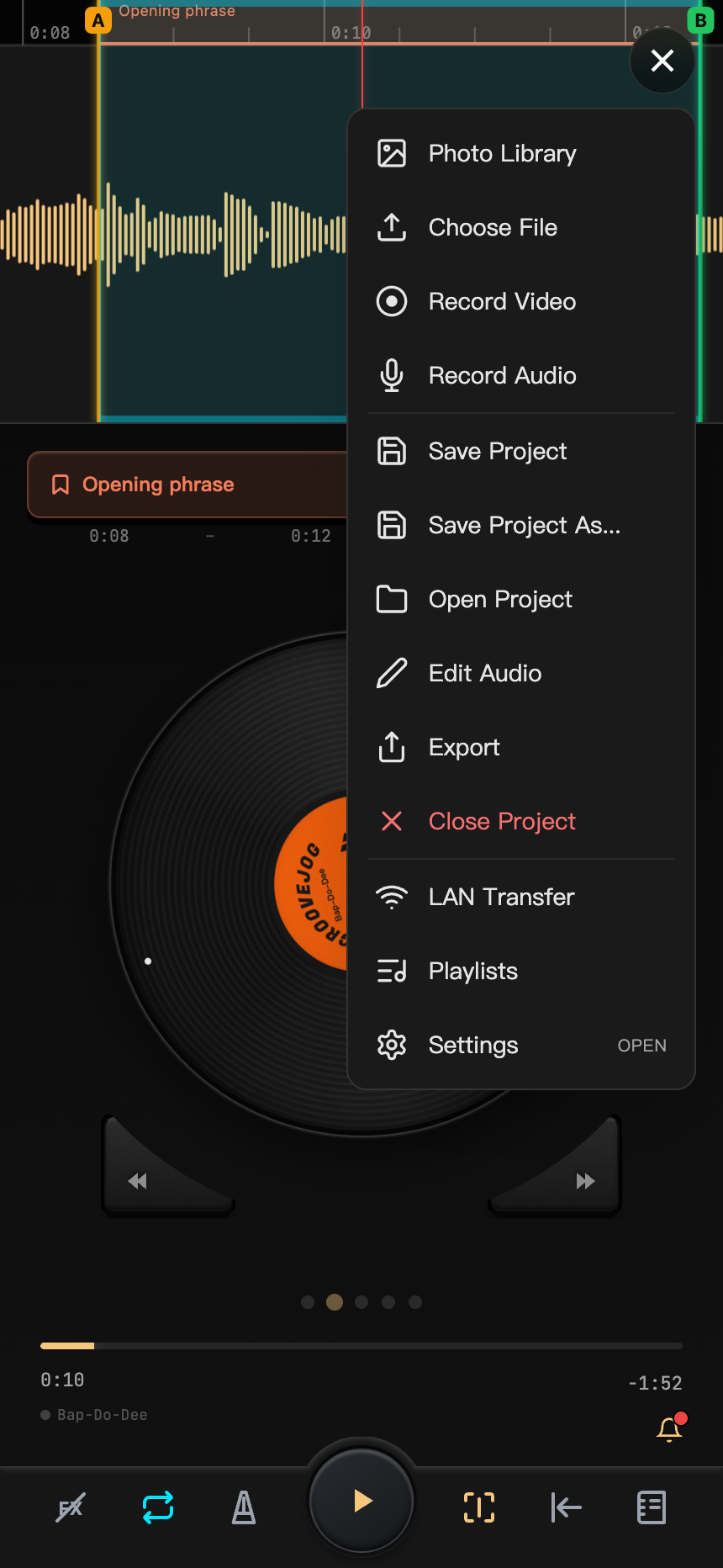
You can start once the waveform appears. Phones and tablets can also select a video from the photo library or record material; see Import.
2. Play and Try Manual Slow Playback
Tap Play in the bottom bar or the center of the disc. Press and slowly drag the disc back and forth: the sound follows the direction and speed of your hand. Use it to find the start of a phrase, or move repeatedly around a note to hear its attack, changes, and ending clearly.
If you start dragging during playback, playback resumes when you release. If you start while paused, it stays at the new position. Inertia settings affect how it coasts after release. See Scrubbing.
3. Lower the Playback Speed
On a phone, swipe left from the disc to the Speed and Pitch panel. On a tablet or in a browser, select the Playback tab. Turn on the speed switch and set the speed to 0.75× or 0.5× while keeping the pitch unchanged.
You can also hold the center of the full disc and drag up or down to adjust speed. See Speed and Pitch.
4. Select a Loop
Drag horizontally across the ruler above the waveform to select the section you want to practice. Alternatively, press SET A at the start and SET B at the end. On a phone, these buttons are on the disc page; on tablets and in browsers, they are in the loop bar below the waveform.
Turn on the loop switch in the bottom bar, then press Play to hear the section repeatedly. Drag its edges to fine-tune the range. Save it as a named clip to select it directly next time. See Loops and Clips.
5. Save the Project
On a phone, choose Save from the menu, or tap the project name at the lower left and save from Project Info. On a tablet or in a browser, use the Save button at the top.
A project keeps the media, clips, notes, audio settings, and any existing stems. The temporary workspace keeps only your current work. To practice several songs, save each as a separate project. See Save as a Project.
Next Steps
- Detect Beats: seek by beat, select loops, and use the metronome.
- Separate Instruments: separate parts in the app, or open a project package containing stems in a browser.
- Save Layouts: adjust the position and size of tablet or browser interface regions.
- Playlists: play multiple projects continuously in the app.