Save and Switch Layouts
Tablet and browser desktop interfaces can save their region arrangements. Give video more room for video practice, enlarge the waveform for close listening, or expand tools for stem mixing.
Select Layout in the top toolbar. With the tablet toolbar collapsed or the browser in Focus Fullscreen, open the layout library from the remaining menu.
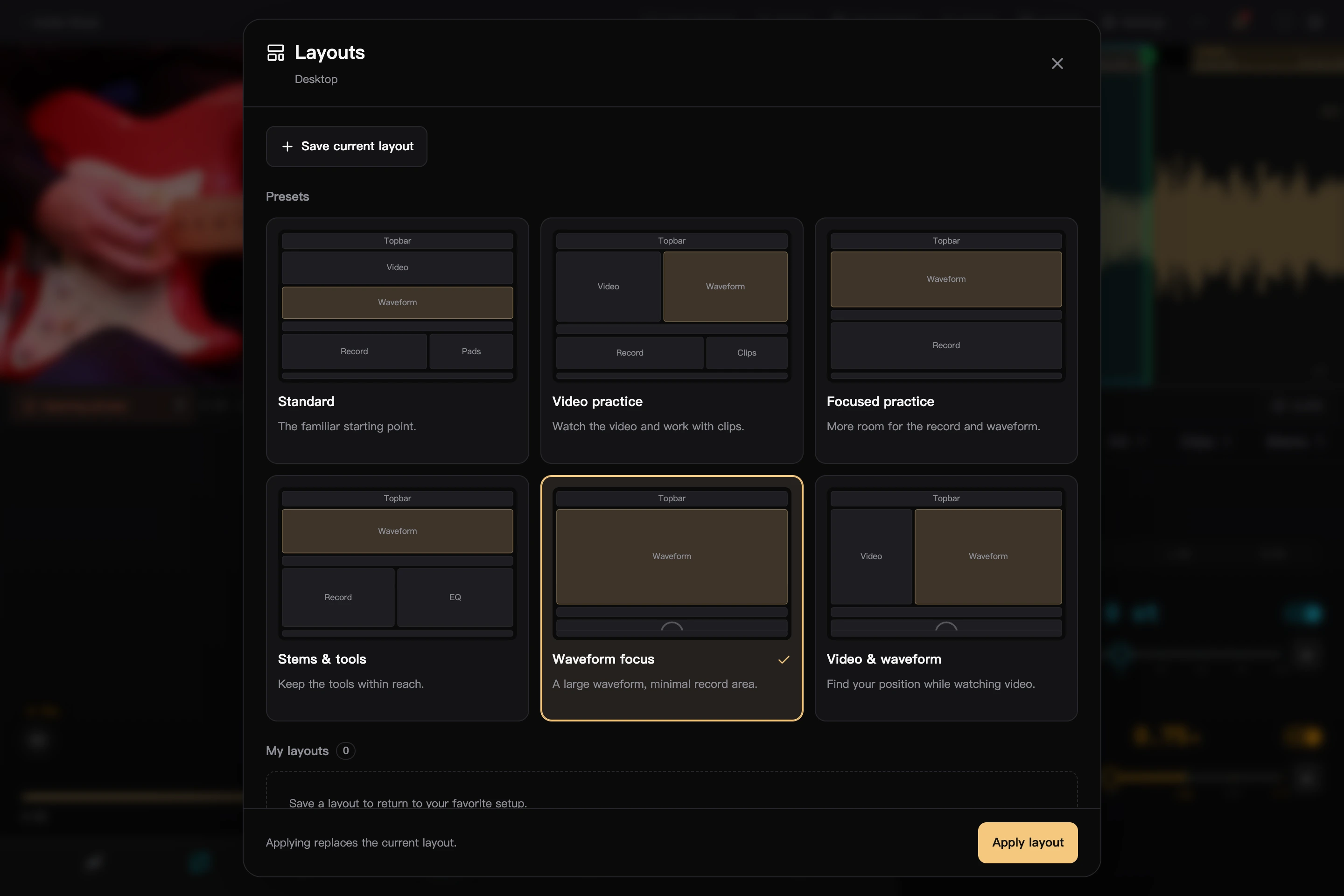
Select the image to view it at full size.
Choose a Built-in Layout
| Preset | Suitable use |
|---|---|
| Standard | Use media, disc, and tools together |
| Video practice | Give video more room to practice along with the picture |
| Focused practice | Collapse some supporting regions to focus on playback and disc |
| Stems & tools | Expand tools for audio adjustments |
| Waveform focus | Enlarge the waveform and shrink the disc to a small half-disc, primarily using waveform scrubbing |
| Video & waveform | Emphasize both video and waveform, with a small half-disc |
Select a card, then Apply layout. Cards show approximate arrangements and proportions. Applying replaces the current arrangement without changing the project or audio settings.
Projects without video omit the video region. Stems & tools uses the EQ panel when stems are unavailable.
Save Your Own Arrangement
- Adjust video position, region sizes, and visibility, and choose your usual tool tab.
- Open the layout library, save the current layout, and name it.
- Later, select that card and choose “Apply layout” to restore it.
Layouts save region proportions, arrangement, collapsed states, and the active tool tab. They do not save the track, playback position, speed, EQ, video rotation, or similar settings, or whether the browser is fullscreen.
Update, Save As, and Delete
After adjusting a loaded custom layout, update that layout or save as new. Merely selecting another card in the dialog does not change which loaded layout will be updated.
You can rename or delete custom layouts; deletion asks for confirmation. Deleting a layout does not change the current screen arrangement.
The workspace remembers the latest arrangement, but named layouts must be updated manually. For example, after temporarily enlarging the waveform, update your saved “Close Listening” layout if you want it to use that height too.
When the Window Size Changes
Browser desktop, wide tablet, and medium tablet windows save layouts separately. The list shows arrangements available for the current window type.
Applying restores the saved proportions as closely as possible, then adapts to available space, so actual sizes may differ slightly. Waveform focus and Video & waveform try to maximize media space on first application; you can still drag dividers afterward.
If a tablet window is less than 600 pixels wide, widen it before saving or applying layouts.
Where Layouts Are Saved
Layouts are stored on the current device or browser, shared by its projects, and excluded from .gjproject packages. They are separate from playlist audio presets: layouts arrange the interface, while audio presets save playback processing.