Using a Browser
The web app and browser extension share these instructions. Windows at least 900 pixels wide use the desktop layout; narrower windows use a phone-style arrangement. Resizing switches layouts immediately.
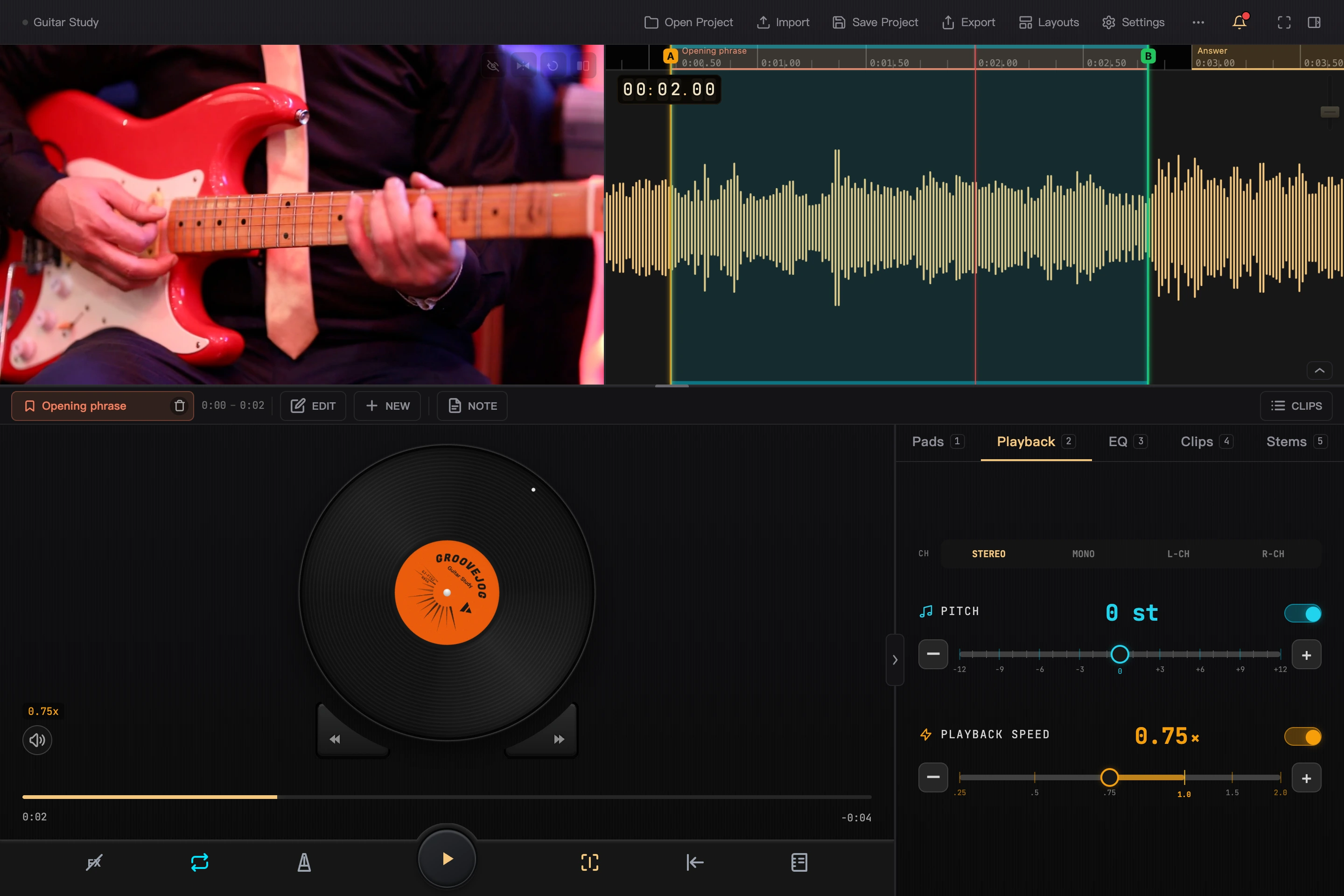
Select the image to view it at full size.
Open and Save Projects
The top toolbar provides Open, Import, Save, Export, Layout, and Settings. Select the project name to view and edit Project Info. The More menu includes Save As, Close Project, and keyboard shortcut help.
You can also import by dragging an audio, video, or .gjproject file into the window. Drag only one file at a time. Whether the browser can read audio/video depends on its codecs. If a file is unsupported, convert it to a common MP3, M4A, WAV, or MP4 and try again.
Projects are saved in the current browser's local storage. Switching browser, user profile, or between web app and extension entry points does not automatically bring your projects along. Export project packages as backups for important work, especially before clearing site data or uninstalling the extension.
Interface Arrangement
- Top toolbar: project management and settings.
- Media region: video and waveform; video can sit above, left, or right of the waveform.
- Loop/clip bar: set A/B, save and edit clips, and open clip notes and the clip list.
- Disc region: scrub, seek, and view volume and speed readings.
- Tools: five tabs—Pads, Playback, EQ, Clips, and Stems.
- Bottom bar: playback and switches such as Loop, Beats, and Centre Playhead.
Drag dividers to resize regions; double-click to restore defaults. The tools and loop/clip bar collapse independently. A short disc region switches to a half-disc that still supports scrubbing. Hold its speed handle and drag up/down to adjust speed.
Save frequently used arrangements as layouts.
Scrub the Waveform
When Centre Playhead in the bottom bar is lit, the playhead stays in the waveform's middle. Drag the waveform to scrub forward or backward at your hand's speed. Slow back-and-forth movements help you hear a note or spoken phrase clearly. Drag left to move later in time, or right to move earlier.
Whether it coasts after release depends on the disc inertia setting. Starting a drag during playback resumes playback afterward; starting while paused leaves it at the new position.
- Mouse wheel or horizontal trackpad scrolling: scrub and seek in small increments.
- Click the waveform: move the clicked position to the playhead.
- Alt + wheel: zoom the waveform in steps.
- Ctrl + wheel / trackpad pinch: zoom continuously. Centre Playhead keeps the playhead centered when enabled; otherwise, zoom centers on the pointer.
With Centre Playhead off, dragging and scrolling pan the view; clicking still seeks. Touchscreens also support waveform scrubbing in centered mode, with two-finger zoom gestures. See Waveform and Ruler.
Disc, Gear Keys, and Readings
Drag the disc with a mouse or finger. Hold the center label of a full disc and drag up/down to change playback speed. A half-disc uses the adjacent speed handle. See Scrubbing and Hold to Adjust Speed.
The waveform's upper left shows the current time and, while dragging, the time moved during this gesture (TRIP). The waveform amplitude slider changes the height of the graphic, not the volume. Double-click it to restore the default.
While scrubbing, hold Shift to use the left gear key's sensitivity, or Alt to use the right gear key's sensitivity; release to restore it. Wheel scrubbing supports Shift for changing sensitivity; Alt + wheel zooms. Gear values come from “Settings → Jog → Gear Keys” and use the first configured key on each side. With no key configured on a side, its keyboard gear key has no effect.
Video and Focus Fullscreen
Buttons at the video's upper right switch its arrangement, visibility, mirroring, and rotation. Move the mouse over the video or focus the buttons with Tab to see them.
Pinch the trackpad or use Ctrl + wheel to zoom video. The enlarged picture can fill the entire video region, including black bars at the sides. Drag the zoomed picture to inspect details; double-click to reset. Hiding video does not affect sound. Mirroring, display rotation, zoom, and panning affect the current view without directly rewriting the media file.
The toolbar's fullscreen icon opens Focus Fullscreen, collapsing management controls and tools while retaining video, waveform, loops, and playback controls. Select the icon again or press Esc to return to the previous layout.
Browser Stems and Export
Browsers cannot perform new instrument separation. Separate and save a project in the app, export it with stems, then import the .gjproject into the browser. The Stems tab lets you adjust volume, mute, solo, and pan; playback and scrubbing use the current mix.
The browser currently exports project packages only. To export processed audio, video, or clips, take the package back to the app. Audio/video recording, media editing, and playlist mode are also app features. See Platforms for the full differences.
Keyboard Shortcuts
Common keys: Space to play/pause, ← / → to seek, I / O to set loop start/end, L to toggle looping, [ / ] to adjust speed, - / = to zoom the waveform, F for Focus Fullscreen, and ? for shortcut help. Esc closes the topmost menu or dialog and exits Focus Fullscreen.
See Keyboard Shortcuts for the full table.
Settings and Transfer
In Settings, choose a language directly or follow the system language.
To transfer a project from your phone, download the package and drag it here. Compatible Chromium extensions can also receive projects directly from the LAN management page. See Using the Transfer Webpage.