Speed and Pitch
On a phone, swipe left from the disc to the Speed and Pitch panel. On tablets and in browsers, select the tools' Playback tab.
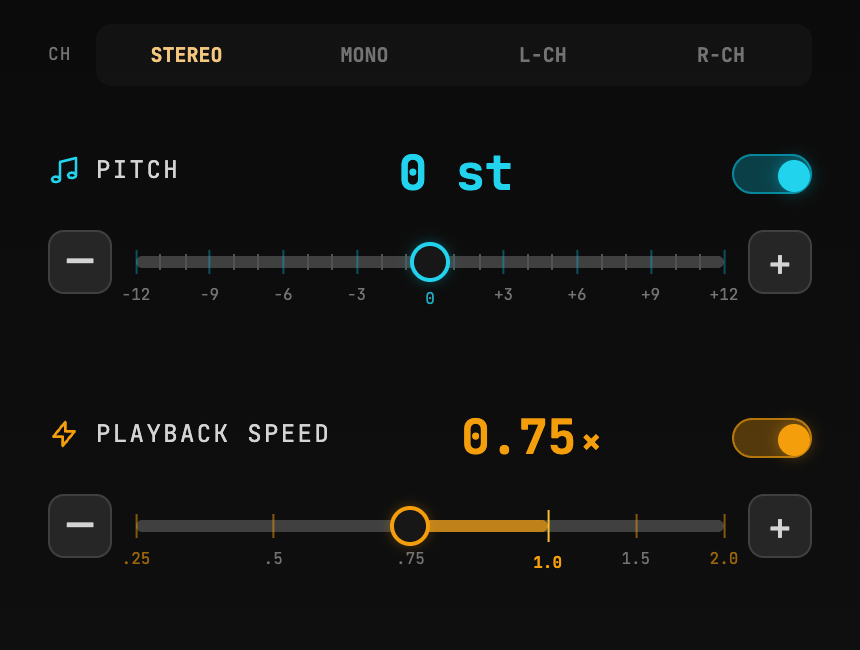
Speed
Turn on the speed switch and adjust within 0.25×–2×. Speed changes preserve the selected pitch.
Try 0.75× first, then 0.5× if you still cannot hear clearly. Very low speeds help reveal brief changes but may sound unnatural; choose according to the material and detail you need.
Holding the full disc's center adjusts the same speed. See Quick Speed Adjustment.
Pitch
Adjust pitch from −12 to +12 semitones without changing playback speed. Use it to transpose a backing track into a key that suits your playing or singing.
Speed and pitch have independent switches. Turn either off to compare before and after processing. Effects Bypass in the bottom bar bypasses speed, pitch, and EQ together.
Channel
At the top of the panel, choose Stereo, Mono, Left Channel, or Right Channel. Some recordings place different instruments in the left and right channels; listening to one side can help identify them.
With stems enabled, channel selection applies to the already mixed left/right channels: a stem panned right may be inaudible with Left Channel selected, while Mono combines both signals. To hear a single stem, Mute and Solo is more direct.
Channel selection does not redraw the stem waveform. See Stem Waveform.
With Auto-Speed Enabled
Loop Auto-Speed controls the speed when enabled, restricting manual speed controls. To adjust it yourself, turn off Auto-Speed first.
Export a Slowed or Transposed Version
Enable Mix Processing in the app's export interface to write currently enabled effects such as speed and pitch into audio or video. In a browser, export a project package first, then use the app to export the finished media. See Export Your Work.